The Real Reason Your WordPress Site Feels Sluggish (Hint: It's Not Your Images)
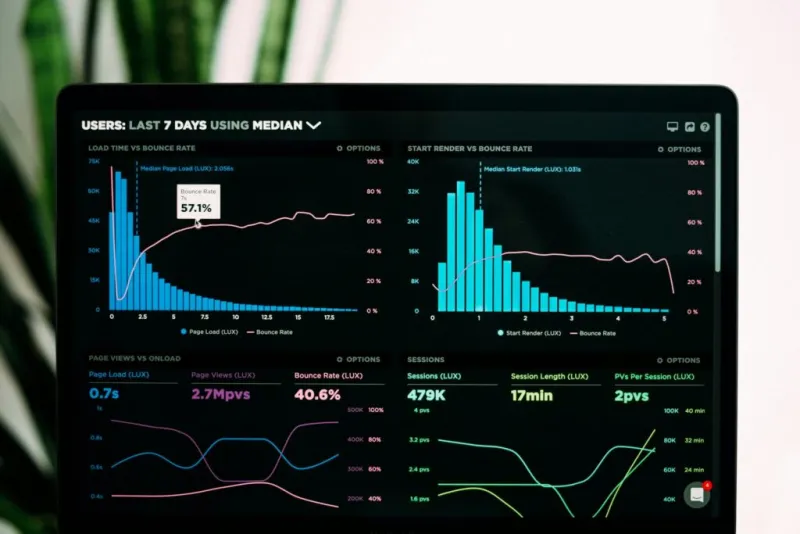
Photo: web developer analyzing website performance metrics on computer screen, via www.website99.co.in
You've heard the advice a hundred times. Compress your images. Use a caching plugin. Get a CDN. Maybe even throw in lazy loading for good measure. You did all of it. Your Google PageSpeed score ticked up a few points, you felt good about it, and then a client called to tell you their competitor's site still loads noticeably faster.
Frustrating, right?
Here's the thing — the "optimize your images" crowd isn't wrong, exactly. But that advice addresses maybe 20% of what's actually dragging down most WordPress installations. The other 80% hides in places developers rarely think to look. After digging through dozens of real-world site audits here at WP Dev Nest, we've put together a diagnostic framework that goes a lot deeper than the standard checklist.
Your Database Is Probably a Dumpster Fire
WordPress stores a lot in the database — posts, metadata, options, transients, revisions. Over time, especially on sites that have been running for a few years, that database balloons with garbage data that quietly slows down every single page load.
Post revisions are a classic culprit. WordPress saves a new revision every time someone clicks "Save Draft," which sounds harmless until you realize a busy blog can accumulate thousands of revision records for a single post. Each one is a row in your wp_posts table, and when WordPress queries that table, it's wading through all of it.
Then there are transients — temporary data caches stored in wp_options. Plugins create them constantly, and many never clean them up after they expire. We've seen wp_options tables with over 50,000 rows on mid-sized sites. That's not a typo. A bloated options table means every page load triggers a slow, expensive database query right out of the gate.
What to do: Use a tool like WP-Optimize or Query Monitor to audit your database. Set a hard limit on post revisions in your wp-config.php (define('WP_POST_REVISIONS', 5);), and schedule regular cleanup of expired transients. This alone can shave hundreds of milliseconds off your Time to First Byte (TTFB).
Custom Code That Runs on Every Page Load
This one stings a little because it's usually developer-created. Custom functions.php code, bespoke plugins, or client-requested features that were hacked together under deadline pressure — they often execute on every single page load, even when they're not needed.
We audited one site recently where a custom shortcode plugin was firing a remote API call on page load to check license status. Not on plugin activation. Not on a scheduled cron job. On every page load. That single function was adding 300–800ms of latency depending on the third-party API's response time. The developer who wrote it had moved on, nobody questioned it, and the site had been slow for two years.
Another common pattern: poorly optimized WP_Query calls that pull hundreds of posts without pagination, or meta queries that aren't indexed. WordPress's database doesn't index custom meta fields by default, so a meta_query on a large dataset is essentially a full table scan.
What to do: Install Query Monitor and actually look at what's running on your pages. Filter by slow queries and external HTTP requests. If something is hitting a remote endpoint on every load, that's a red flag. Move it to a cron job or cache the response as a transient.
Your Theme Is Doing Way More Than You Think
Multipurpose themes — the ones with 900 demos and a drag-and-drop builder baked in — are performance nightmares for anyone who doesn't need all that horsepower. The problem isn't just CSS and JavaScript file sizes, though those matter. It's that many of these themes register scripts and styles globally, load page builder assets on posts that don't use the builder, and initialize JavaScript frameworks on every page regardless of whether that page actually needs them.
We compared two similar sites — same hosting, same content volume, same caching setup. One used a lightweight custom theme built on a minimal starter. The other used a popular multipurpose theme with a bundled page builder. The lightweight site loaded in 1.2 seconds. The multipurpose theme site? 4.1 seconds. Same server. Same cache.
The culprit was 23 separate script files loading on the homepage, several of which were JavaScript libraries for features the site didn't even use.
What to do: Use browser DevTools (Network tab) to audit what's actually loading on your pages. Conditionally enqueue scripts using wp_enqueue_scripts with conditional tags so assets only load where they're needed. If you're building something new, seriously consider starting with a minimal base theme rather than a Swiss Army knife.
Hosting Configuration: The Elephant in the Room
Shared hosting is fine for low-traffic brochure sites. The moment you're building something with real traffic, dynamic content, or WooCommerce, shared hosting becomes a ceiling you'll hit fast — and no amount of optimization will break through it.
But here's the nuance: even on good hosting, misconfiguration kills performance. PHP version matters enormously. PHP 8.2 is significantly faster than PHP 7.4, and yet we still see production sites running on 7.4 because nobody updated the hosting panel setting. Object caching (Redis or Memcached) can dramatically reduce database load, but most hosts don't enable it by default and most developers never ask.
What to do: Check your PHP version and upgrade if you're behind. Ask your host about enabling Redis object caching — many managed WordPress hosts support it. Use a tool like GTmetrix or WebPageTest (not just PageSpeed Insights) to get a full picture of server response time separate from frontend rendering.
A Diagnostic Framework You Can Actually Use
Rather than randomly optimizing things and hoping for improvement, work through these layers in order:
- Measure TTFB first. If it's above 600ms, the problem is server-side — database, PHP execution, or hosting.
- Run Query Monitor. Identify slow queries, external requests, and how many queries are firing per page.
- Audit your database. Check
wp_optionssize, post revision counts, and expired transients. - Profile your theme and plugins. Disable plugins one by one in a staging environment and measure the impact of each.
- Check your asset loading. Count HTTP requests, identify globally-loaded scripts, and look for render-blocking resources.
Speed work is detective work. The sites that are genuinely fast aren't fast because someone ran an image optimizer — they're fast because a developer took the time to understand exactly what was happening under the hood and eliminated the waste.
That's the kind of work we're here for.