Your WordPress Dashboard Is a Mess — Here's How to Actually Fix It

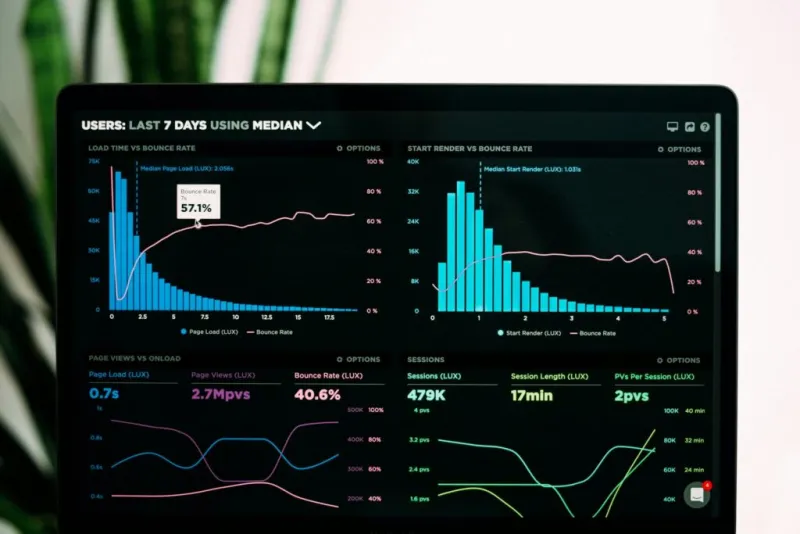
Photo: cluttered computer dashboard interface developer frustration, via obrazki.ai
Open a fresh WordPress install and count how many admin menu items you'll never click. Seriously — go ahead. Dashboard widgets pulling in news feeds, a Help tab that mostly links to documentation you've already memorized, Screen Options toggles hiding half a dozen columns you disabled years ago. It adds up fast.
The WordPress admin has quietly turned into one of those junk drawers everyone has in their kitchen. Useful stuff is in there somewhere, buried under a pile of things that felt important at some point but haven't been touched since.
For developers building sites at scale — or even managing a handful of client projects — that clutter isn't just annoying. It's a real productivity drain.
How We Got Here
WordPress didn't wake up one day and decide to become overwhelming. The bloat crept in gradually, version by version, as new features got bolted onto an interface originally designed for a much simpler tool.
When WordPress 3.0 introduced custom post types and menus, the admin started expanding. By the time the Customizer arrived in 3.4, there was a whole new panel to navigate. Then came the REST API, Gutenberg, Site Health, Full Site Editing, and a growing set of tools that each made sense individually but collectively turned the dashboard into something that can feel genuinely disorienting to a new developer — or even a seasoned one switching contexts between client installs.
The core team's philosophy has generally been to ship features to the widest possible audience, which means keeping things accessible to publishers, bloggers, and business owners who aren't developers. That's a reasonable call. But it creates a mismatch for dev teams who need a leaner, more focused environment.
The Real Cost of Dashboard Noise
Cognitive load is a real thing. When your brain has to scan past irrelevant information to find what it needs, that's mental energy being spent on nothing useful. Multiply that across dozens of logins per day — especially in agency environments where developers are jumping between client dashboards constantly — and the accumulated friction is significant.
There's also an onboarding problem. When a client logs into their site for the first time and sees a dashboard packed with menus and options that have nothing to do with their workflow, the support tickets start flying. A cluttered admin isn't just a developer headache; it's a client experience problem.
And then there's the security angle. Menu items and screens that nobody uses still represent surface area. Leaving the default dashboard widgets loading external feeds, for example, means outbound HTTP requests your client doesn't need and you probably forgot about.
What Developers Actually Use
If you surveyed a typical WordPress developer and asked them to list the admin areas they visit daily, you'd get a short list: Posts or custom post types, Media, Plugins, Settings, and whatever the project's specific tools require. That's roughly 20% of what ships by default.
The remaining 80% — default dashboard widgets, the Comments screen on sites that disabled comments years ago, the built-in themes browser, WP News & Events — just sits there, taking up visual space and occasionally slowing down admin page loads.
One agency in Austin we spoke with did an internal audit of their team's admin usage patterns across 30 active client projects. The finding was pretty stark: developers were regularly interacting with fewer than a dozen distinct admin screens, but their clients' dashboards averaged over 40 visible menu items.
Stripping It Back: Practical Approaches
The good news is that WordPress gives you solid tools to clean house. Here's where most dev teams start:
remove_menu_page() and remove_submenu_page() are your first line of defense. Hook into admin_menu and pull out anything that doesn't belong in your client's workflow. Posts, Pages, Media — keep what they need, lose the rest.
remove_meta_box() handles dashboard widgets and the meta boxes cluttering your edit screens. The default dashboard is a widget graveyard for most clients. Strip it down to a clean welcome panel or a custom widget showing their actual site stats.
Screen Options can be pre-configured using user meta, so your clients never have to figure out why half the columns they need are hidden.
For teams managing multiple sites, a must-use plugin (drop it in mu-plugins/) is the cleanest way to enforce admin simplification across every install without worrying about it getting deactivated.
If you want a more structured approach, plugins like Adminimize or Admin Menu Editor give you a UI for managing these settings without writing code — useful when a non-developer on your team needs to make adjustments.
Real Teams, Real Results
A dev team in Chicago that builds membership sites shared their approach at a local WordPress meetup last year. They'd built a standard mu-plugin that runs on every client install, removing unused menus, replacing the default dashboard with a custom widget showing membership stats and recent support tickets, and hiding the Gutenberg sidebar panels their clients never touched.
The result? Their average client support ticket volume dropped noticeably in the first 90 days after rollout. More importantly, their own developers reported spending less time re-orienting themselves when switching between client sites, because every dashboard followed the same stripped-down structure.
Another freelancer we follow on Twitter (now X, whatever) made a simpler change that had an outsized impact: they removed the WordPress News & Events dashboard widget site-wide and replaced it with a custom panel linking directly to the client's most-used admin screens. Clients stopped asking "where do I find X" almost immediately.
Building a Dashboard That Works for You
The underlying principle here isn't minimalism for its own sake. It's intentionality. A well-configured WordPress admin should reflect the actual workflow of the people using it — whether that's a developer, a content editor, or a site owner.
Start by auditing what you and your clients actually use. Remove everything else. Add back anything that genuinely helps. Version control your admin configuration so it's reproducible across projects.
WordPress core isn't going to slim down on its own — the project has too many constituencies to serve. But that doesn't mean you have to accept the default. The tools are there. The only question is whether you've carved out the time to use them.
Your dashboard should be a workspace, not a waiting room full of furniture nobody sits in.